
by Diego Sanchez
January 17, 2025
Diego prevents carpal tunnel syndrome in designers worldwide by making incredible time-saving Photoshop actions and mock-ups.


Create a Fully Editable Sketchy Text Effect in Illustrator
Illustrator Text Effects
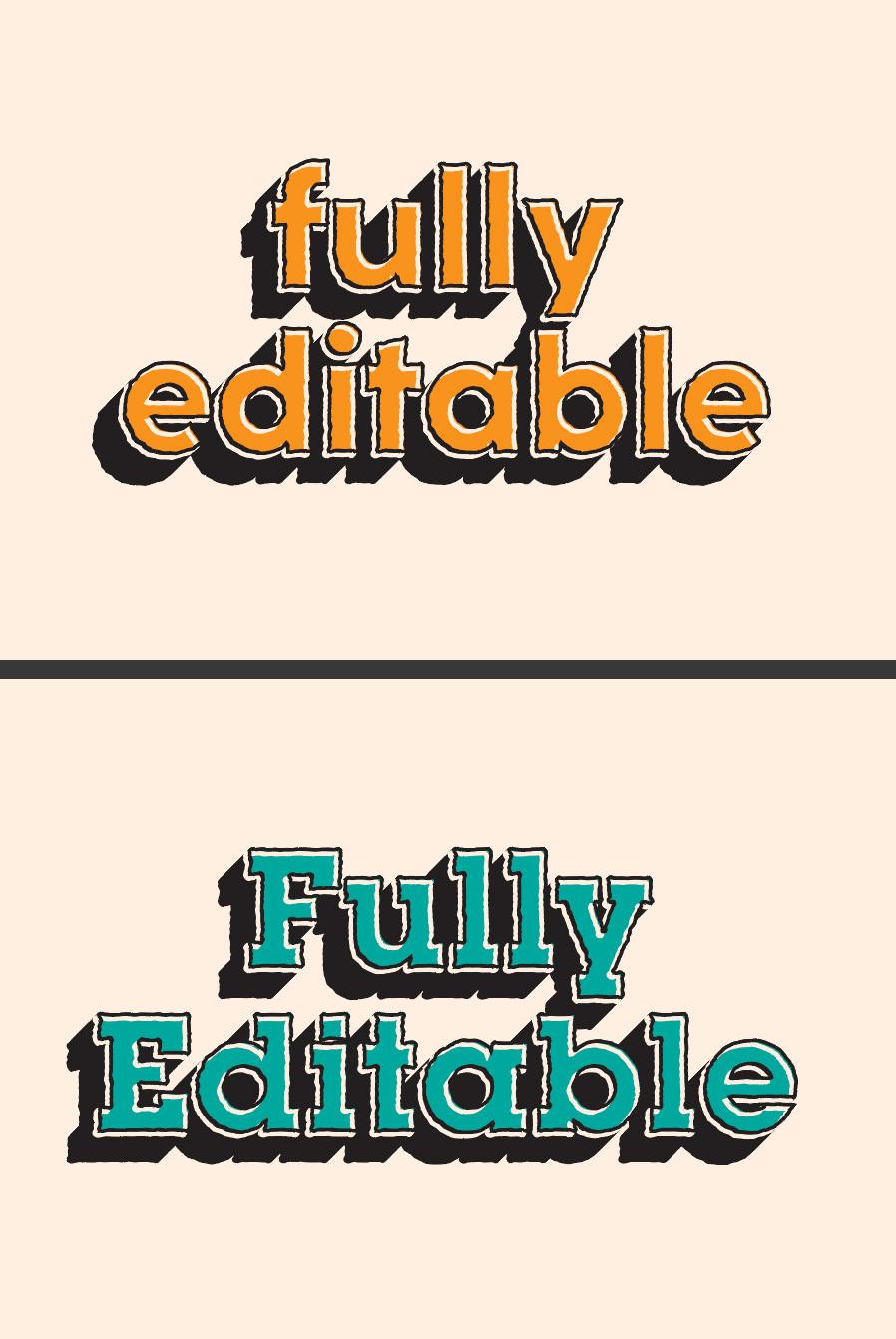
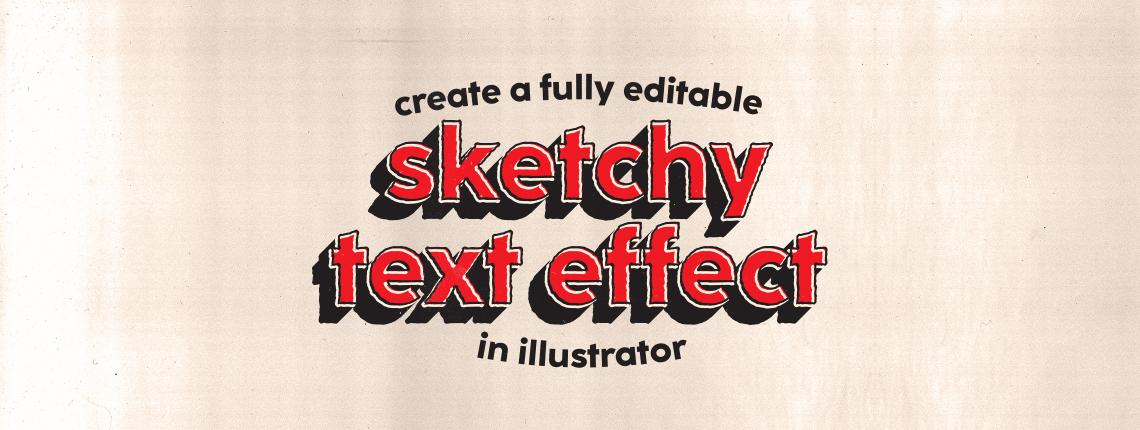
Designing creative and eye-catching text effects doesn’t have to be a complex task. Today, I’ll show you how to create a fully editable sketchy text effect in Adobe Illustrator in just 5 minutes. By combining the power of the Appearance Panel with native Illustrator effects, you’ll achieve a dynamic, hand-drawn look with ease. Best of all, your text will remain 100% editable, so you can easily modify the font, color, or size anytime without losing the effect. This flexible and time-saving technique is perfect for a variety of creative projects, from bold graphic design pieces like posters and logos to web design typography.
Step 1
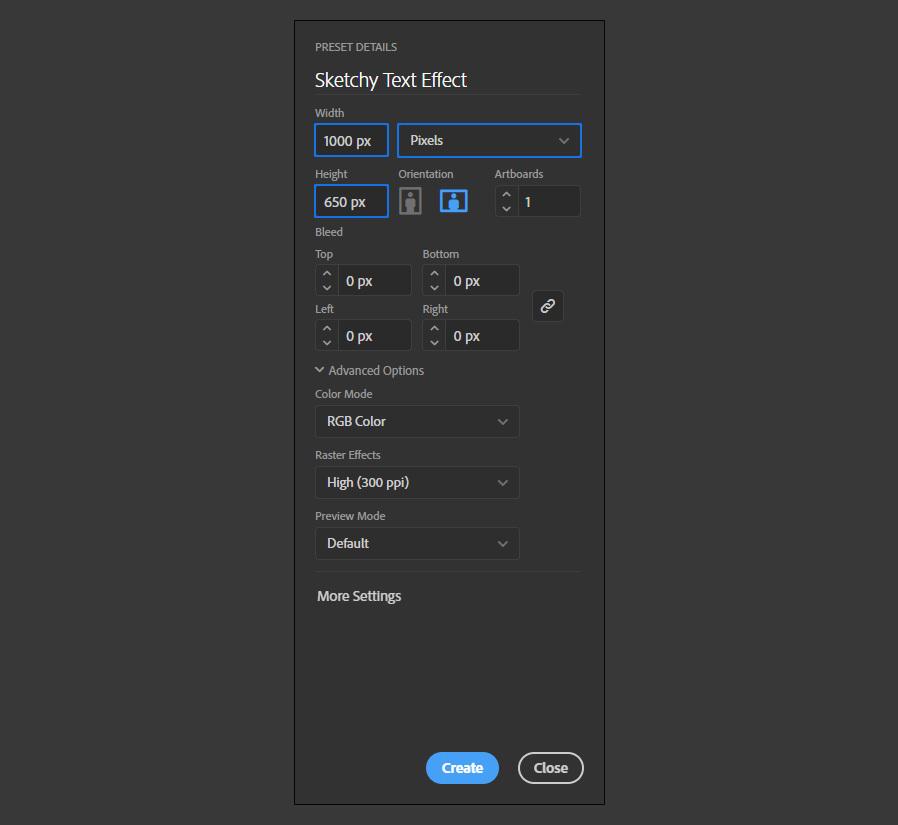
Open Illustrator and make a new file at any size you want. In this case, I will make mine at 1000 x 650 px.
Step 2
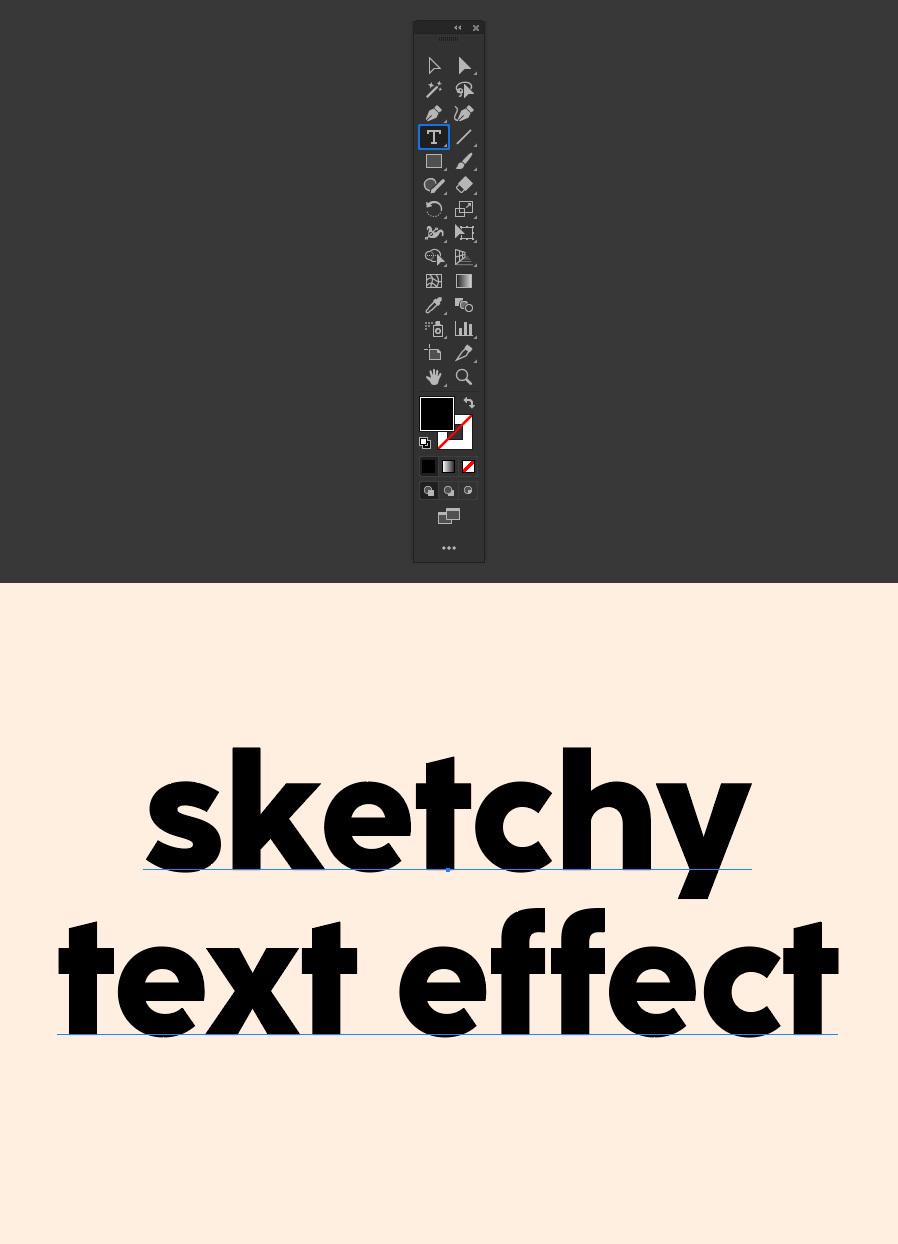
Select the Type Tool (T) and type your text using any font you wish. I will be using CocoSharp Extrabold at 160 pt. Note: I will be using a color background set to #FFEFE1 for you to better see the effect, but you are free to set any color background you wish.
Step 3
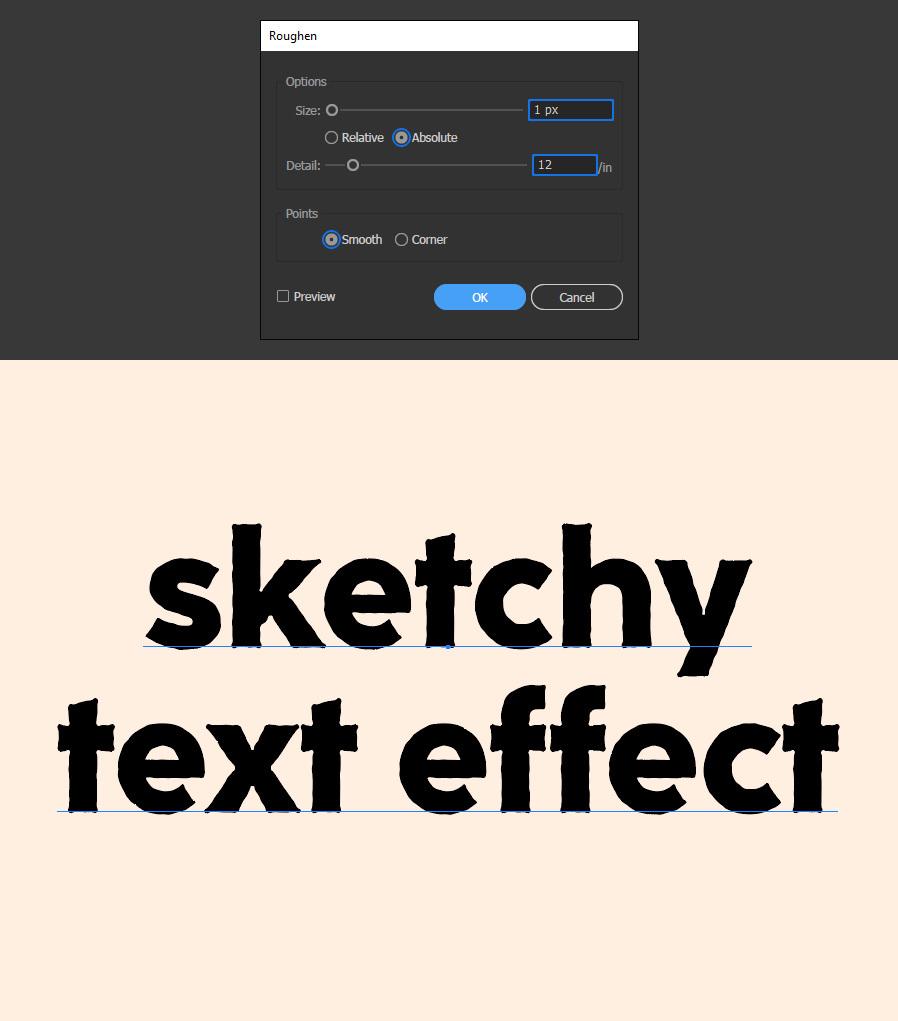
Go to Effect > Distort & Transform > Roughen. In the Roughen window apply the following settings and click OK.
Step 4
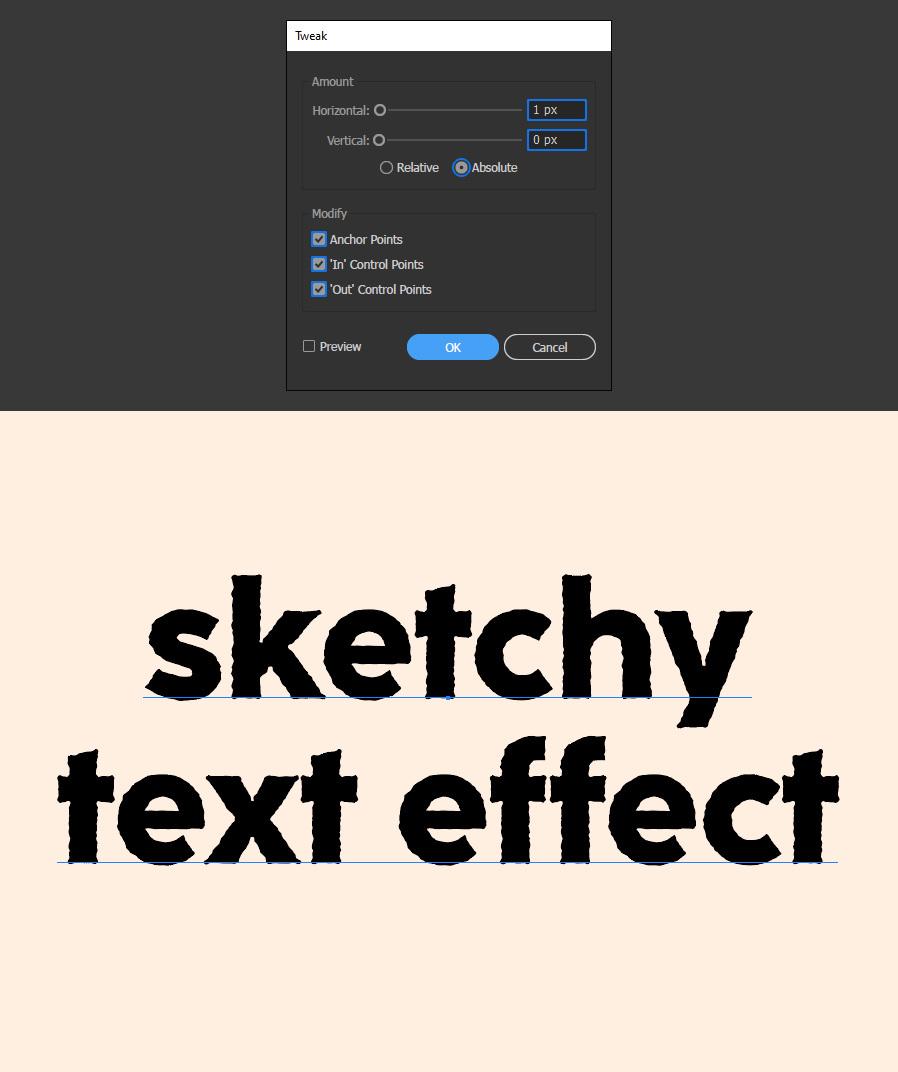
Go to Effect > Distort & Transform > Tweak. In the Tweak window apply the following settings and click OK.
Step 5
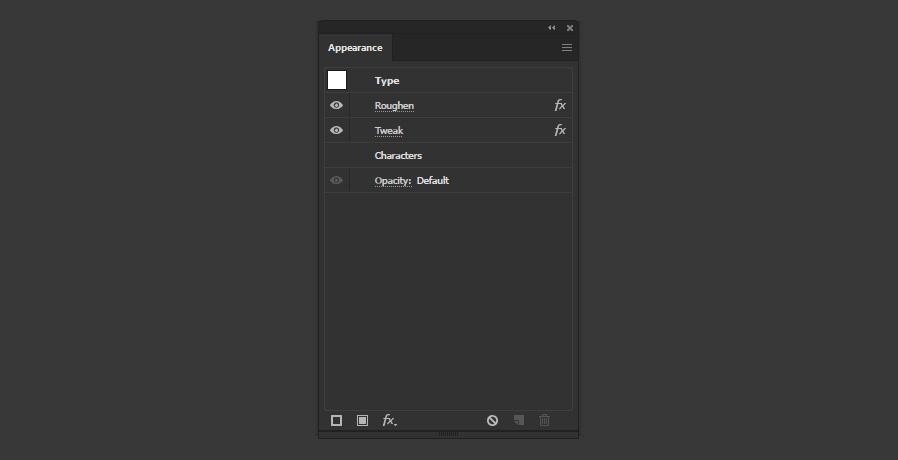
With your text object selected, go to Window > Appearance.
Step 6
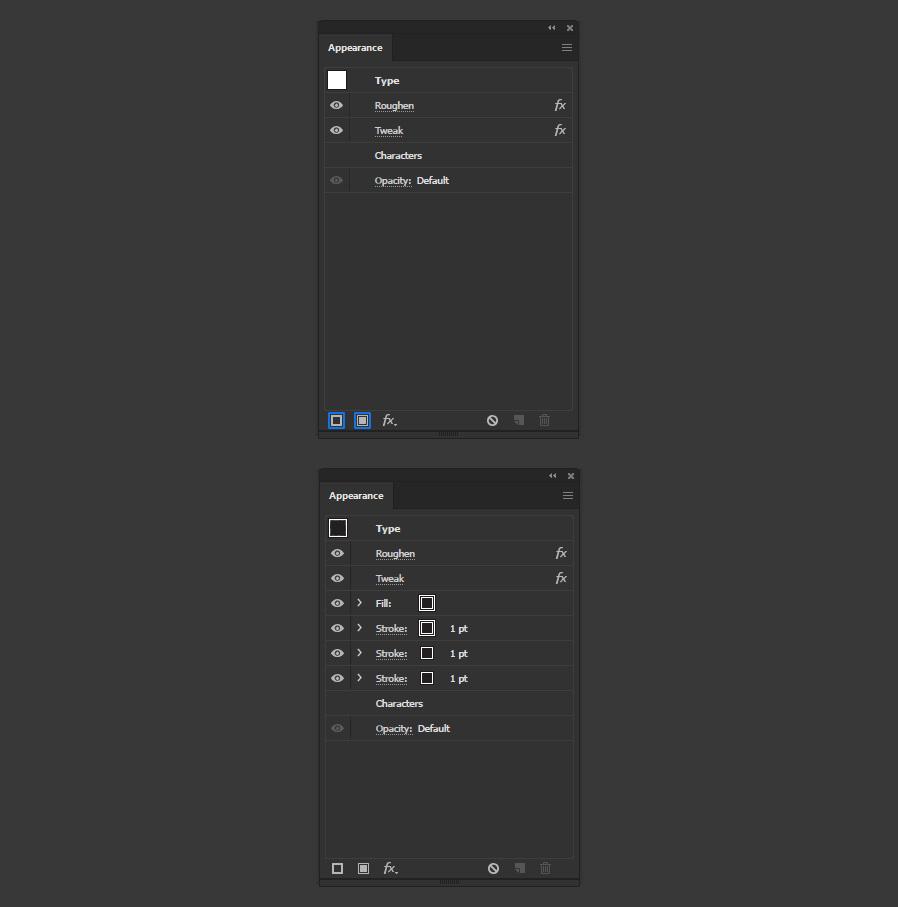
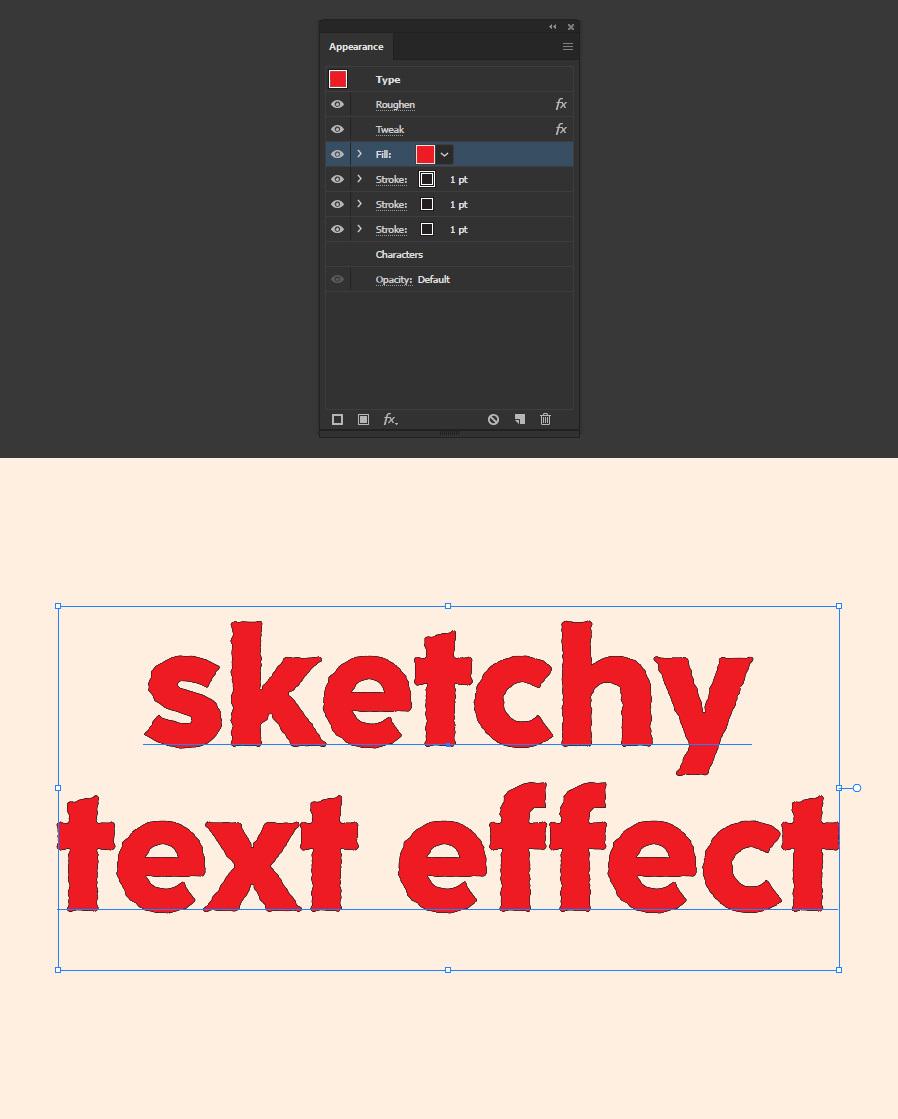
Click on the "Add New Stroke" icon 3 times to add 3 stroke layers and once on the "Add New Fill" icon to add 1 fill layer.
Step 7
Set any color you want in the Fill layer for your text. In this case, I will set mine to #CC2128.
Step 8
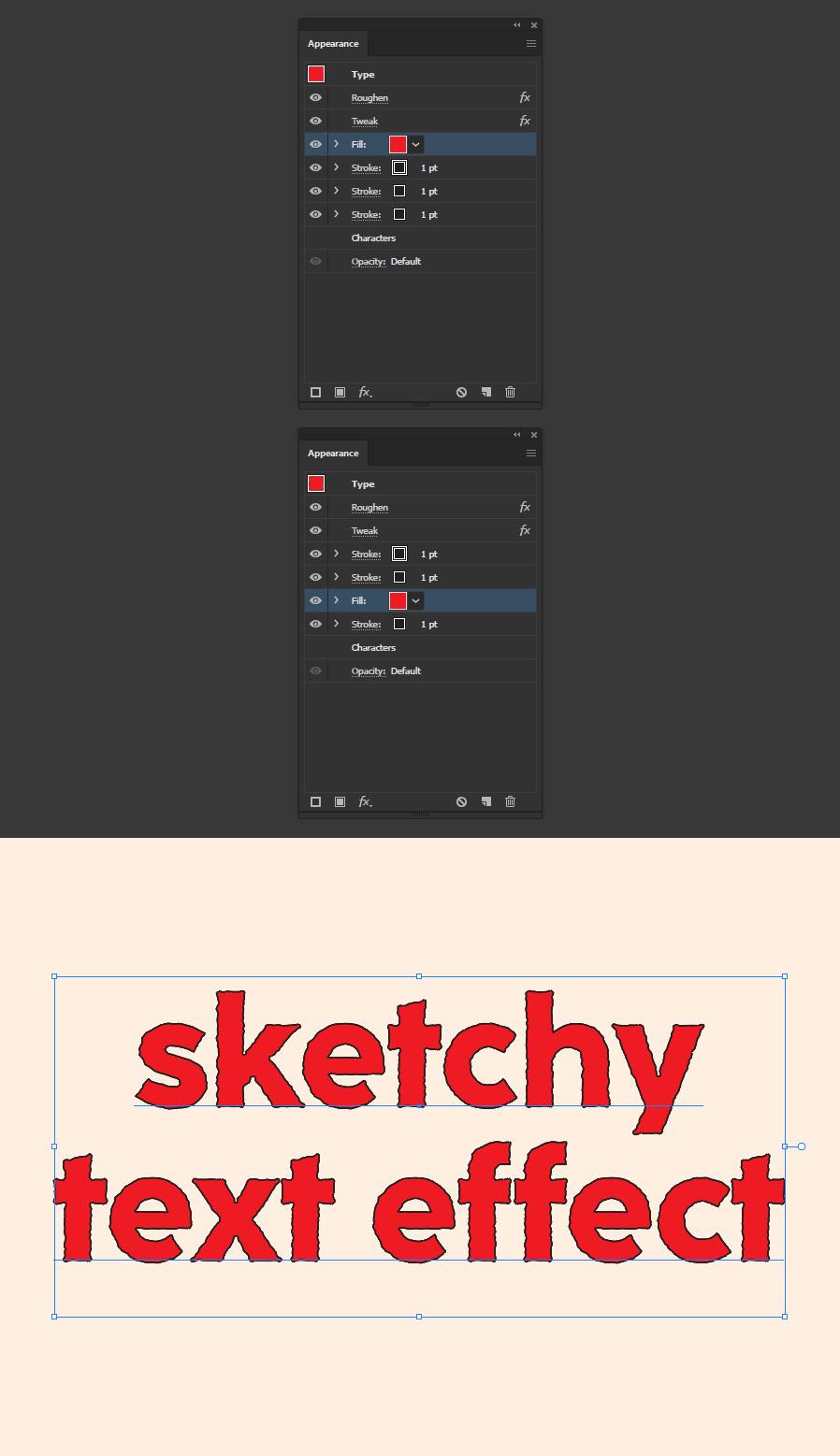
Drag the Fill layer between the second and third Stroke layers.
Step 9
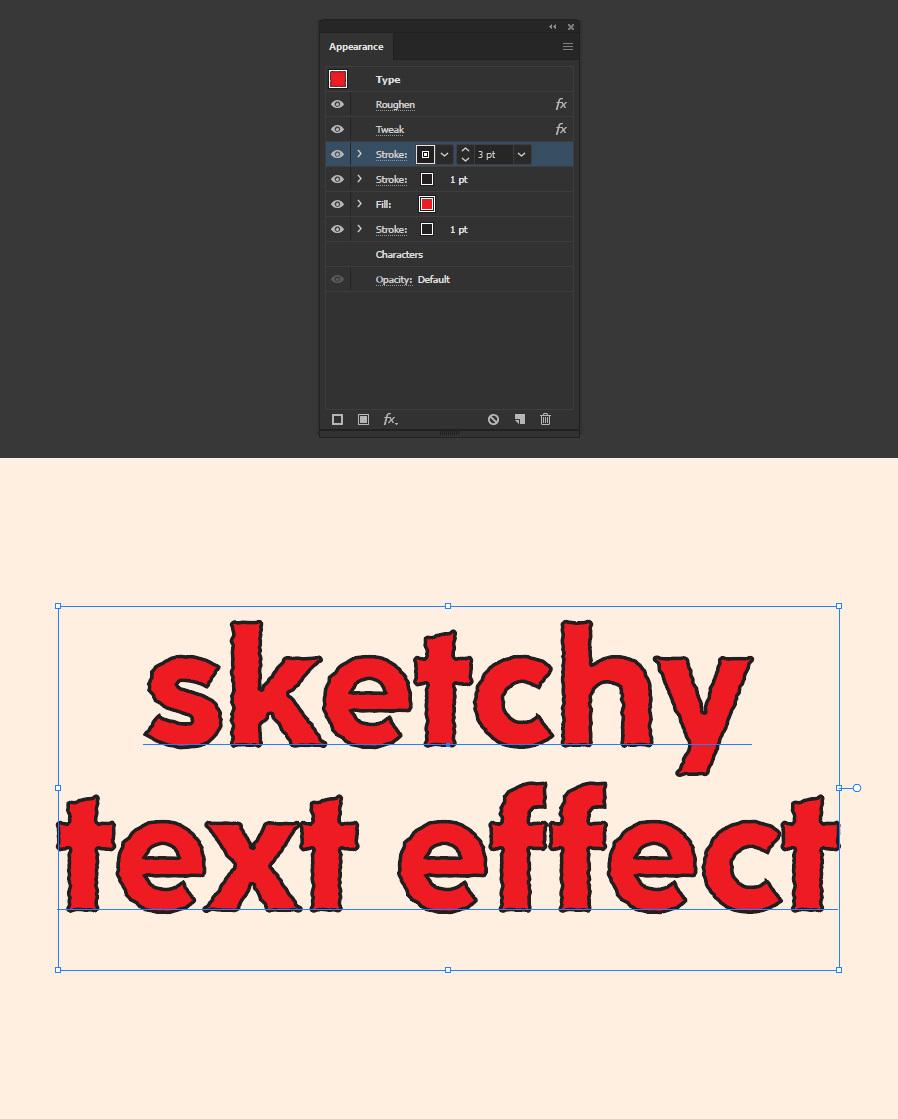
Set the first Stroke weight to 3 pt.
Step 10
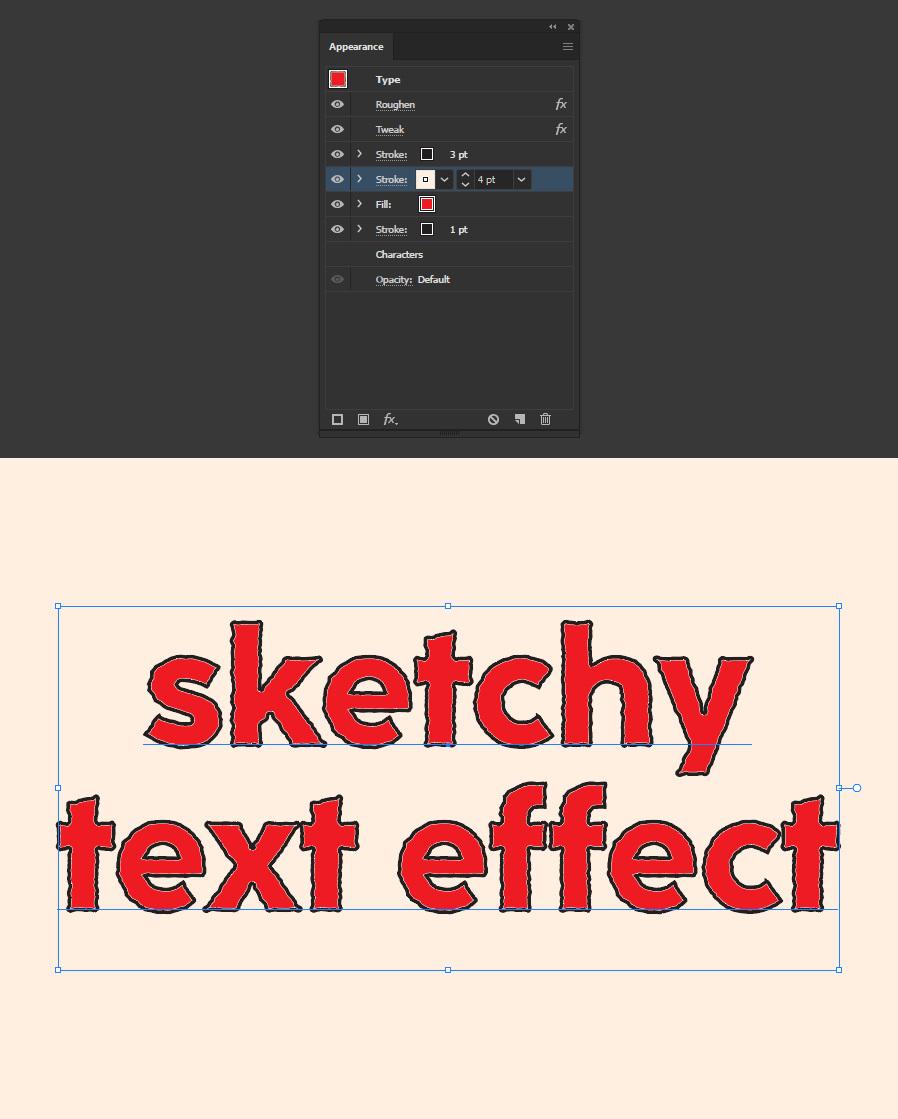
Set the second Stroke Weight to 4 pt and give it a different color. In this case, I will use the same color I've used for the background.
Step 11
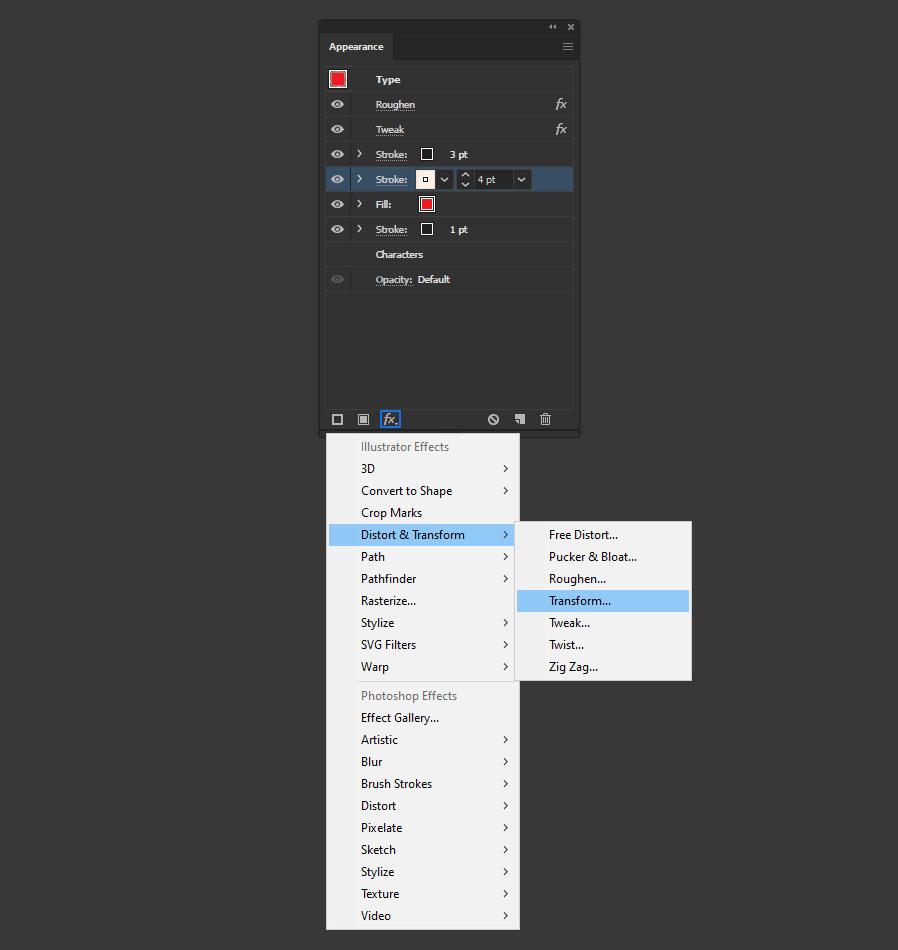
With the second stroke layer selected, click on the "Add New Effect" icon and from the dropdown menu select Distort & Transform > Transform.
Step 12
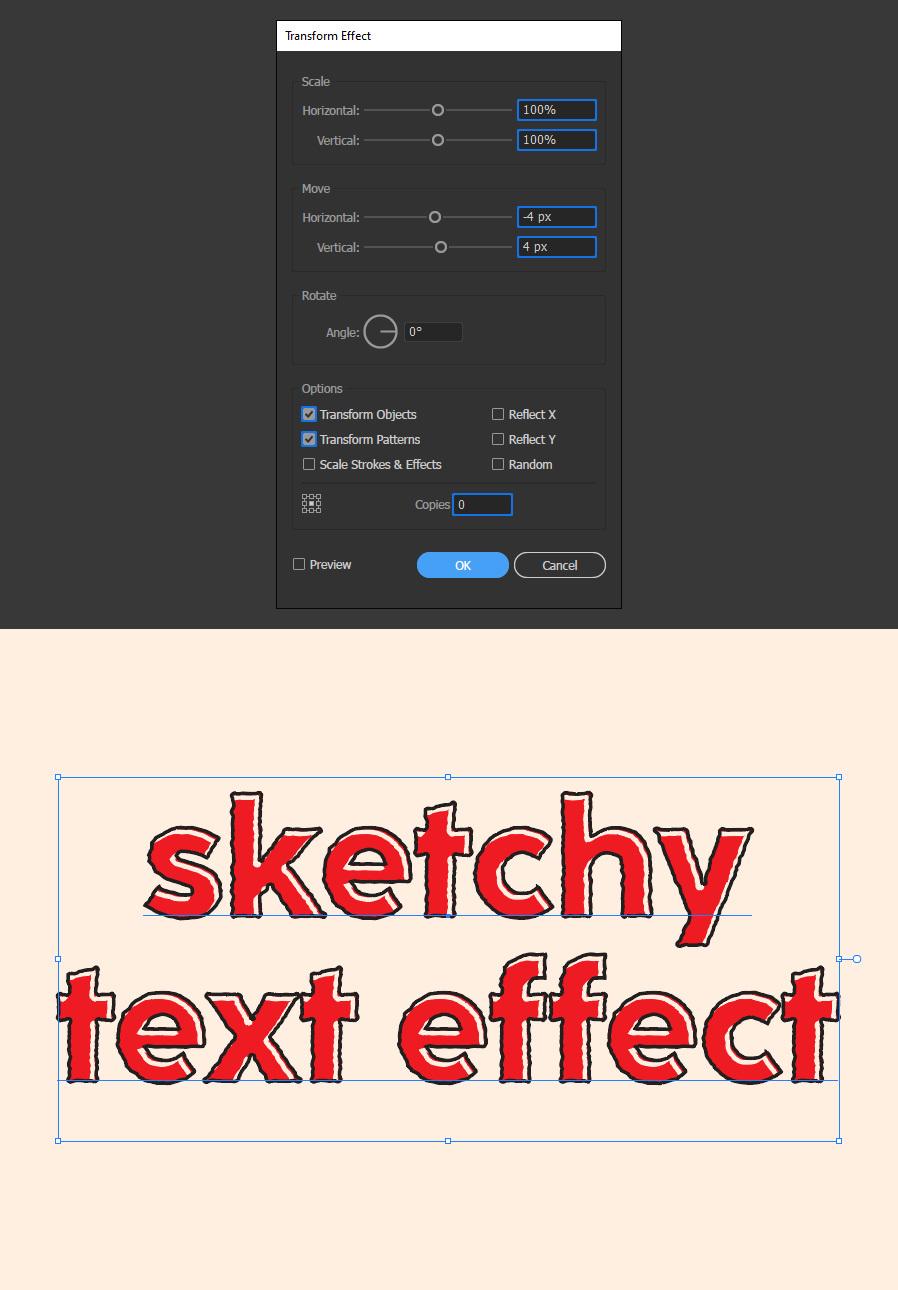
Apply the following settings and click OK.
Step 13
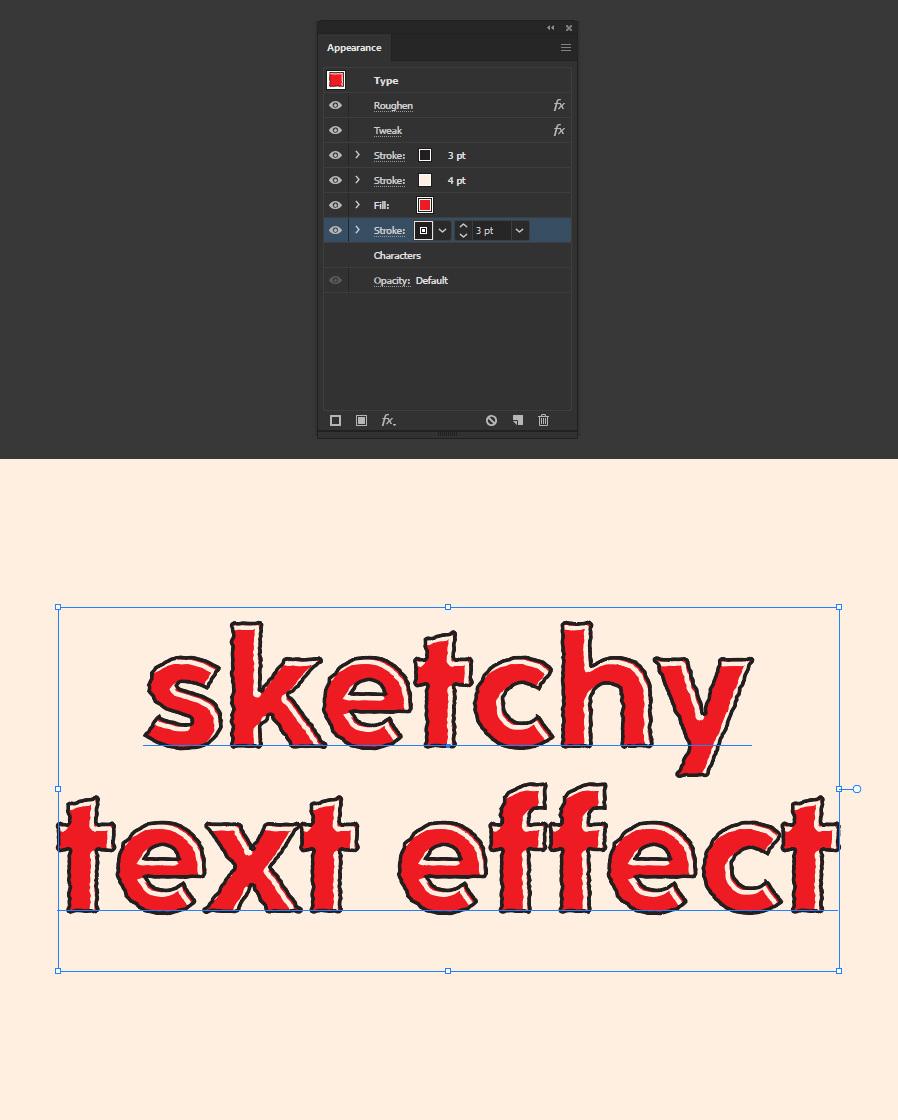
Set the third Stroke Weight to 3 pt.
Step 14
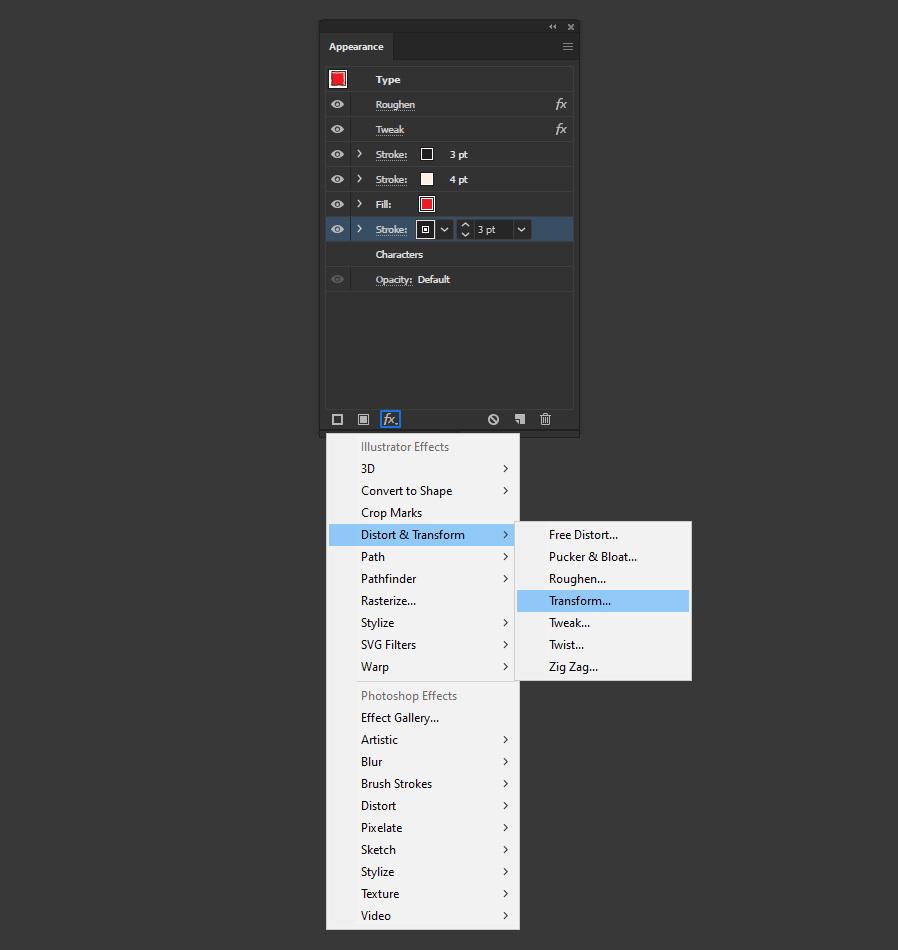
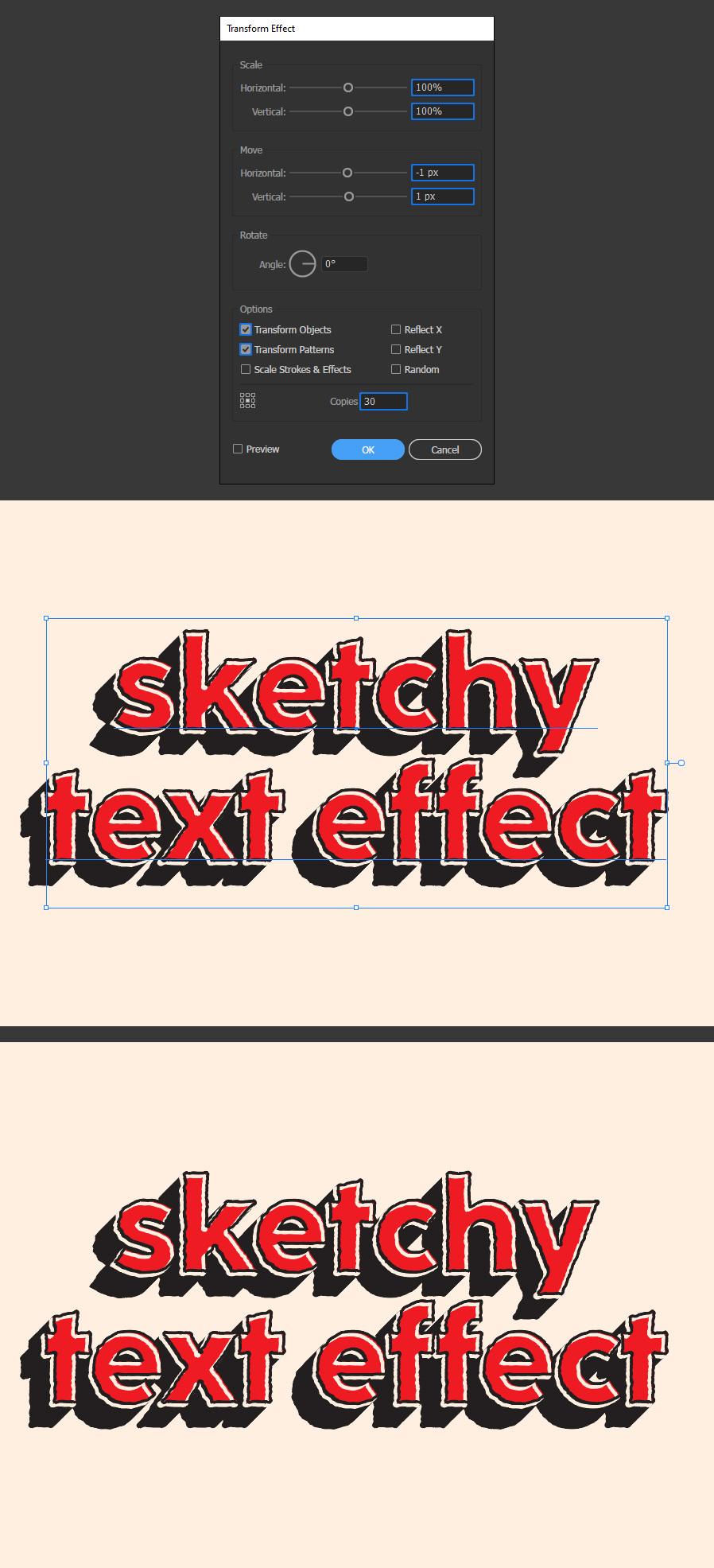
With the third stroke layer selected, click on the "Add New Effect" icon and from the dropdown menu select Distort & Transform > Transform.
Step 15
Lastly, apply the following settings and click OK.
Some Final Notes:
Now that you know how to create a sketchy text effect in Illustrator, you can edit the text as usual and adjust the text or stroke colors directly in the Appearance Panel, as shown in the following examples.