
by Tony Thomas
May 19, 2011
Tony creates pixel-perfect UI kits & icons. His pug, Wednesday, is Medialoot's beloved mascot.
How to Create an Abstract Space Scene in Illustrator
How to Create an Abstract Space Scene in Illustrator In this tutorial we will create an abstract space scene with vector tools in Illustrator, utilizing the Mesh tool and Blending Modes to create abstract light and color effects, this tutorial allows you to bring some of your own creativity into the process and is all packed in a simple and easy to follow set of six detailed steps.
The Final Result
Before we start, let’s have a look at what we hope achieve with the final result of the tutorial: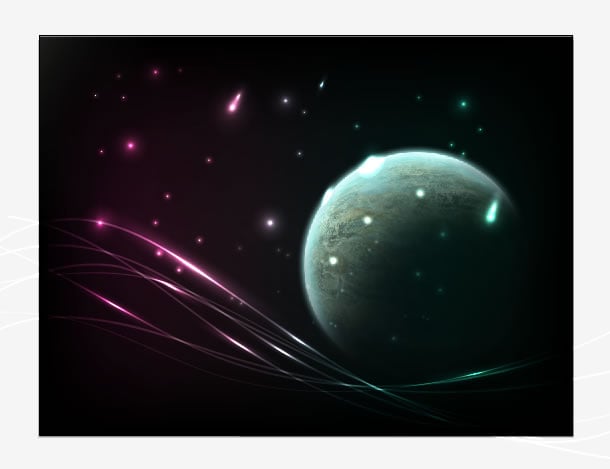
Step 1 - Create a New Document
Launch Illustrator and create a new document (CTRL+N), in the New Document dialog box, we will need to set up an RGB document so make sure that is selected underneath the Advanced label and for the dimensions of the document go for something like 1600px wide by 1200px high. When you’ve entered the details for the new document click OK to create it.
Step 2 - The Background Mesh
Using the Rectangle Tool (M) draw a new rectangle onto the canvas covering the entire document. Fill the rectangle black (R:0 G:0 B:0) and set the stroke to transparent. This rectangle will become our background mesh and source of color.
Select the Mesh Tool (U) and click onto the rectangle to make a new point, align the point approximately in the middle of the document vertically and around 25% in from the left edge of the document.
Do this again on the right hand side of the document and you should end up with what looks like two tall, thin rectangles, then two wide rectangles, and then another two tall, thin rectangles.
This rectangle will become our background mesh and source of color.
Select the Mesh Tool (U) and click onto the rectangle to make a new point, align the point approximately in the middle of the document vertically and around 25% in from the left edge of the document.
Do this again on the right hand side of the document and you should end up with what looks like two tall, thin rectangles, then two wide rectangles, and then another two tall, thin rectangles.
 Next with the Direct Selection (A) tool highlight the first point you created (left) and modify it’s color value in the color mixer (Window > Color).
For the first point create a dark blue by combining 0 Red, 13 Green and 23 Blue in the color mixer, don’t worry that this is very dark at the moment, as it will be intensified by other elements later on.
The mesh feature in Illustrator is used for blending colors, which can give some truly amazing results, our use of it in this tutorial is relatively very basic, but is a good way to familiarize yourself with the tool if you haven’t done so before.
Next with the Direct Selection (A) tool highlight the first point you created (left) and modify it’s color value in the color mixer (Window > Color).
For the first point create a dark blue by combining 0 Red, 13 Green and 23 Blue in the color mixer, don’t worry that this is very dark at the moment, as it will be intensified by other elements later on.
The mesh feature in Illustrator is used for blending colors, which can give some truly amazing results, our use of it in this tutorial is relatively very basic, but is a good way to familiarize yourself with the tool if you haven’t done so before.
 For the second point on the right mix 0 Red, 28 Green and 25 Blue.

Step 3 - The Stars
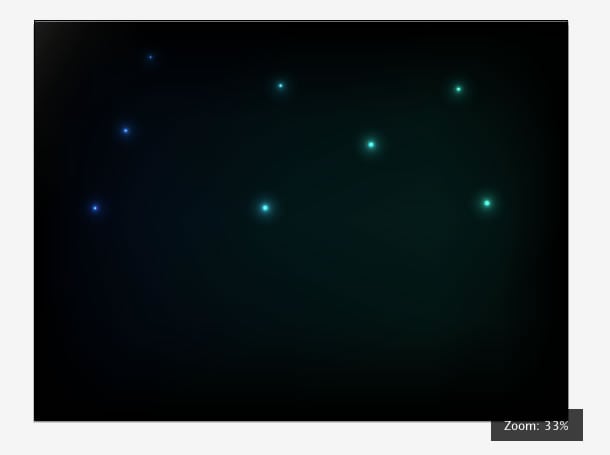
Create a new layer and name it Stars. You can also lock the Background layer to avoid it getting in the way or accidentally clicked. Now, we will create our first star, begin by drawing an ellipse on the canvas with a gradient fill, and in the gradient window (Window>Gradient) set the type of gradient to Radial, and set the first color stop to white (R: 255 G: 255 B: 255) and the last stop to black (R:0 G:0 B:0).
 Next, open up the Transparency window (Window > Transparency) and set the Blend Mode to Color Dodge. As if by some witchcraft, you should now have a glowing blue or green star depending on where you place it above the background mesh.
Try moving the star from one side of the canvas to the other to see the differences on each part of mesh.
Next, open up the Transparency window (Window > Transparency) and set the Blend Mode to Color Dodge. As if by some witchcraft, you should now have a glowing blue or green star depending on where you place it above the background mesh.
Try moving the star from one side of the canvas to the other to see the differences on each part of mesh.
 With the star object selected hold down the ALT key on your keyboard and drag the object to another location and release, you should have duplicated the original shape.
Repeat this step about 5-10 times, scattering stars around the canvas, which is starting to look a bit spacey now.
With the star object selected hold down the ALT key on your keyboard and drag the object to another location and release, you should have duplicated the original shape.
Repeat this step about 5-10 times, scattering stars around the canvas, which is starting to look a bit spacey now.
 There aren’t quite enough stars yet though, we could do with a collection of smaller stars surrounding these ones.
Duplicate one of the stars, select it with the Selection Tool and resize it by drawing the handles around the object and holding down SHIFT to constrain proportions.
Scatter (ALT+Drag to duplicate) about 20 more of these smaller stars around, focusing on the top half of the document. You don’t need to worry about making some slightly smaller and some slightly larger than others, the differences in color on the background mesh create this effect automatically.
There aren’t quite enough stars yet though, we could do with a collection of smaller stars surrounding these ones.
Duplicate one of the stars, select it with the Selection Tool and resize it by drawing the handles around the object and holding down SHIFT to constrain proportions.
Scatter (ALT+Drag to duplicate) about 20 more of these smaller stars around, focusing on the top half of the document. You don’t need to worry about making some slightly smaller and some slightly larger than others, the differences in color on the background mesh create this effect automatically.
 Try distorting a few of the stars too (ie. resize without holding shift), and combining two by placing them very close to each other, but not overlapping.
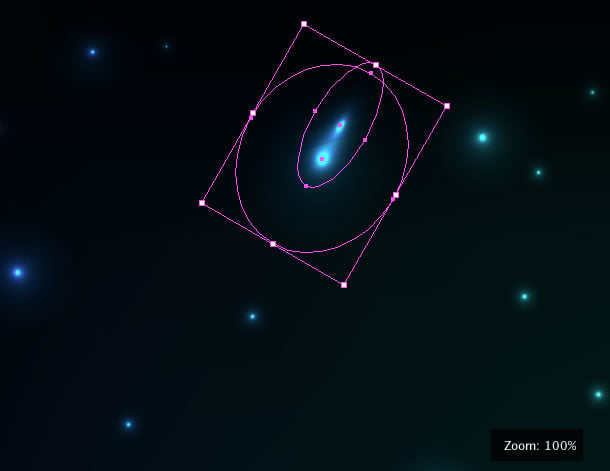 Have some fun and play around the light effects, avoid doing this to too many of the stars though as the effect works best on just a few stars.
 Finally, create another handful of stars (about 25), group them (CTRL+G) and place them slightly lower than the existing cluster of stars.
Set the Opacity of the group to around 25%. This gives the effect of the stars fading into the background gradually, rather than just stopping suddenly.
Finally, create another handful of stars (about 25), group them (CTRL+G) and place them slightly lower than the existing cluster of stars.
Set the Opacity of the group to around 25%. This gives the effect of the stars fading into the background gradually, rather than just stopping suddenly.
 Your document should now look something like this:

Step 4 - The Rays of Light
Create a new layer named “Rays” and click OK This is the bit where a graphics tablet comes in pretty handy. Don’t worry if you don’t have one though, it’s easy to enough to do with a mouse or trackpad too.
Start off by selecting the Paintbrush Tool (B), set the Stroke color to white, the width to 0.25pt, the preset to ‘5 pt. Flat’ and if you have version CS5 or higher, the profile to ‘Width Profile 5’.
This is the bit where a graphics tablet comes in pretty handy. Don’t worry if you don’t have one though, it’s easy to enough to do with a mouse or trackpad too.
Start off by selecting the Paintbrush Tool (B), set the Stroke color to white, the width to 0.25pt, the preset to ‘5 pt. Flat’ and if you have version CS5 or higher, the profile to ‘Width Profile 5’.
 Draw a smooth line emanating from the left side of the document with a subtle wave down to a slightly lower point on the right side of the document, as demonstrated above.
Repeat this step until you have 10 fairly similar smooth, wavy lines filling most of the bottom half of the document.
You’re aiming for something along these lines:
Draw a smooth line emanating from the left side of the document with a subtle wave down to a slightly lower point on the right side of the document, as demonstrated above.
Repeat this step until you have 10 fairly similar smooth, wavy lines filling most of the bottom half of the document.
You’re aiming for something along these lines:
 The next step is to blend these lines into the scene so open up the Transparency window again and select Soft Light for the Blend Mode.
 The edges of your light rays should now match the color the stars and fade to black towards the edges of the document.
Create a new layer and call it “Glow”.
The edges of your light rays should now match the color the stars and fade to black towards the edges of the document.
Create a new layer and call it “Glow”.
 Copy and paste one of the stars from the Stars layer onto the Glow layer and using the Selection Tool (A) distort it until it is long and thin, place it above the top most Light Ray and rotate it until it matches the angle of the Light Ray.
 You should end up with a glowing effect on the ray of light as picture above, repeat this step a few times on the other light rays until you’re happy with the result
 I went for the placement shown above, but you can experiment and place them how you wish.
Step 5 - The Planet
Now for the last step of the composite, we’ve got some nice glowing light effects, but to make it a space scene we could do with a planet in there somewhere. Create a new layer and name it Planet Next head over to sxc.hu and download this planet stock photo. It’s free of charge to download but you do need to be logged in.
Place the stock photo onto the canvas on the new layer you created
Resize it using the Selection Tool (A) and hold SHIFT to constrain the proportions of the image. Reduce the size of the planet until it is just below 50% of the whole document and place it in the bottom right corner of the canvas.
Next head over to sxc.hu and download this planet stock photo. It’s free of charge to download but you do need to be logged in.
Place the stock photo onto the canvas on the new layer you created
Resize it using the Selection Tool (A) and hold SHIFT to constrain the proportions of the image. Reduce the size of the planet until it is just below 50% of the whole document and place it in the bottom right corner of the canvas.
 In the Transparency window set the Blend Mode to Screen, this will filter out the darker areas of the planet, blending it into the composite. You may also want to tweak the position and relationship between the stars and the planet. Avoid anything that looks too over exposed and try to get at least one or two stars right on the edge of the planet as that creates a nice effect.

Step 6 - Final Touches
The beauty of this kind of tutorial is that it allows you to be creative and put your own swing on it, whilst hopefully learning some new techniques in the process. So at this point feel free to tweak your composite or adjust the colors on the background mesh. I wasn’t 100% about the blue and green colors I chose at the start so I thought I’d tweak the green and switch the blue for a magenta.

Conclusion
Download the full size JPG.
And there we have it, an abstract space scene created in Adobe Illustrator!
We covered the basics of the Mesh tool for blending colors with ease and touched on blend modes too, hopefully you can take away some useful tips from this tutorial inspired by our recent set of Spaceology: Abstract Vector resources. Thanks for reading and we’d love to hear your thoughts on the tutorial in the comments.

Comments