Elegant Debossed Photoshop Text Styles

Elegant Debossed Photoshop Text Styles

Elegant Debossed Photoshop Text Styles

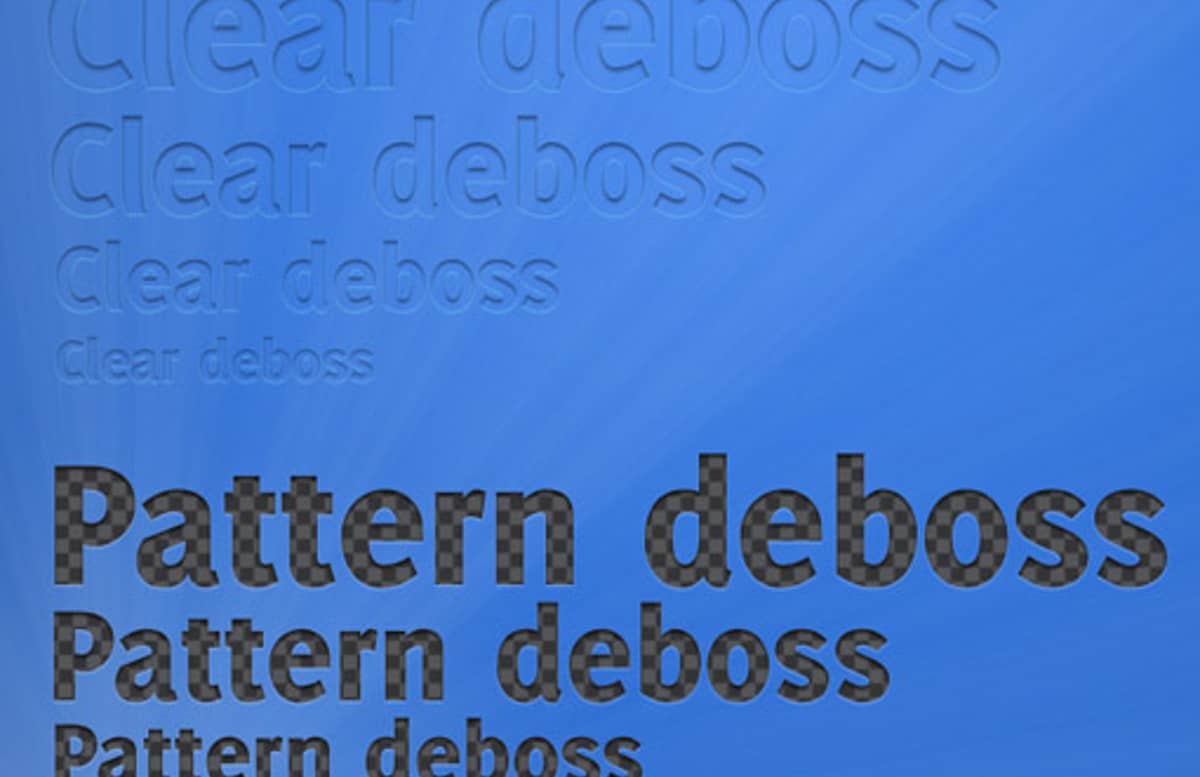
These text styles are perfect for designers working on a web or print design featuring a medium-dark background. The letters in this set appear to be “pressed” into the page as if they were created by a letterpress. The set comes with four styles:

  • Deep Deboss
  • Shallow Deboss
  • Clear Deboss
  • Pattern Deboss

Additionally, each of these four styles are created in 4 different sizes, ranging from very small to very large (to make sure the effect shows up well). The kit includes a PSD file with all of the text you see in the preview image, as well as an ASL file to place the styles directly in your Photoshop style pallet.

Usage Instructions

If you aren’t familiar with using Photoshop styles, don’t worry—it’s really not too difficult. Here is a quick set of instructions to get you started:

  1. Save the resource file and extract the ASL file to a directory you can remember
  2. Open an existing Photoshop file or create a new document
  3. Find the style palette, or open it by going to Window >> Styles
  4. In the upper right of the styles palette there is a small down arrow next to a set of lines, this is the extended menu.
  5. Click on the extended menu and find the option to “Load Styles”
  6. Find the extracted ASL file and click okay. This should populate the styles palette with your new styles.
  7. Create a new text layer, and then select that layer and click on one of the styles.
  8. Tada! Your text will now have the selected style. You may wish to adjust the color of the drop shadow to match your new background. This can be done by double-clicking on the text effects in the layer palette and changing the drop shadow color to a lighter version of your background.

Comments

  • Mar 10, 2010 at 10:21 pm

    I got as far as finding the style palette in Photoshop… can you tell me how to use styles?

  • Mar 10, 2010 at 11:06 pm

    Hey Jenn!

    Absolutely, that will probably help out a lot of people. I’ve added the usage instructions to the item description—let me know if anything isn’t clear and I can try to revise them :-)

    Hope you like the styles,

    - Mason

  • Mar 11, 2010 at 4:05 am

    I know how to make this style. Just using drop-shadow. :) Am I right?

  • Mar 11, 2010 at 9:29 am

    Hey Baloot,

    Most of them are a combination of a drop-shadow and an inner-shadow, with the drop-shadow actually providing a highlight. The one style has a pattern-overlay also :-)

    I could possibly make a tutorial for these, as they’re pretty straight forward to make. A lot of the difficulty comes down to tweaking the layer effects.

    Thanks for the comment!

    - Mason

  • Mar 11, 2010 at 11:59 am

    Thanks Mason!

  • Mar 12, 2010 at 6:44 pm

    Simple yet really neat! Gives a really professional effect.

  • Mar 13, 2010 at 4:07 pm

    @Jack—Glad you like them! This is actually one of my favorite styles to use in my own designs. I think it looks really nice without being too gaudy (like high-gloss effects).

  • Mar 17, 2010 at 2:03 pm

    Wow Mason. You gave me a new tips for this debossed and embossed text styles. I’ll try using innershadow and pattern overlay soon.

    Thanks for new tips.

    p/s: You should make a tutorial too. :)

  • Aug 9, 2010 at 8:19 pm

    deep deboss style is overused. nice alternatives are the shallow and pattern inset style. thanks!

Leave a Comment:

Notify me of follow-up comments?

$4.00

- or -

Get a MediaLoot Subscription

Download every item in our collection and more for just $19/mo →

gap line

Item Stats

  • 4.25
  • Sign up or login to rate this item.
  • 137
  • Mason Hipp
gap line

Attributes & Details

  • 03/09/2010
  • Styles
  • 1050px by 1512px
  • Vector & Bitmap
  • psd asl
gap line

License

By purchasing or downloading this item you are agreeing to abide by all terms and conditions laid out in the MediaLoot License Agreement.
View the full license →

gap line

Similar Resources:

  • 40 Light And Pastel PS Gradients
  • 40 Dark Photoshop Gradients
  • 48 Smooth Photoshop Gradients
  • Classy Glass Text & Button Styles
  1. Sign Up for MediaLoot
  2. Download AS MANY Resources as you want
  3. Get tons of new resources every week